Preview & Playback
Previewing Library Items
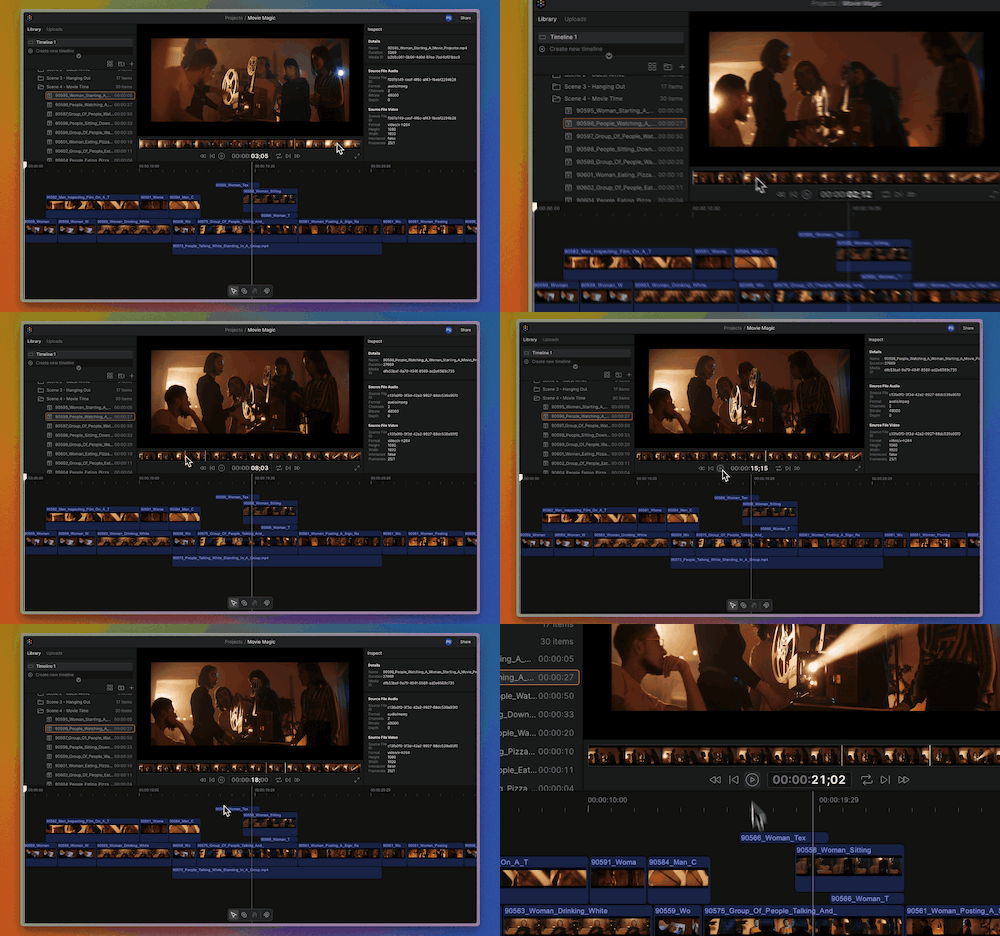
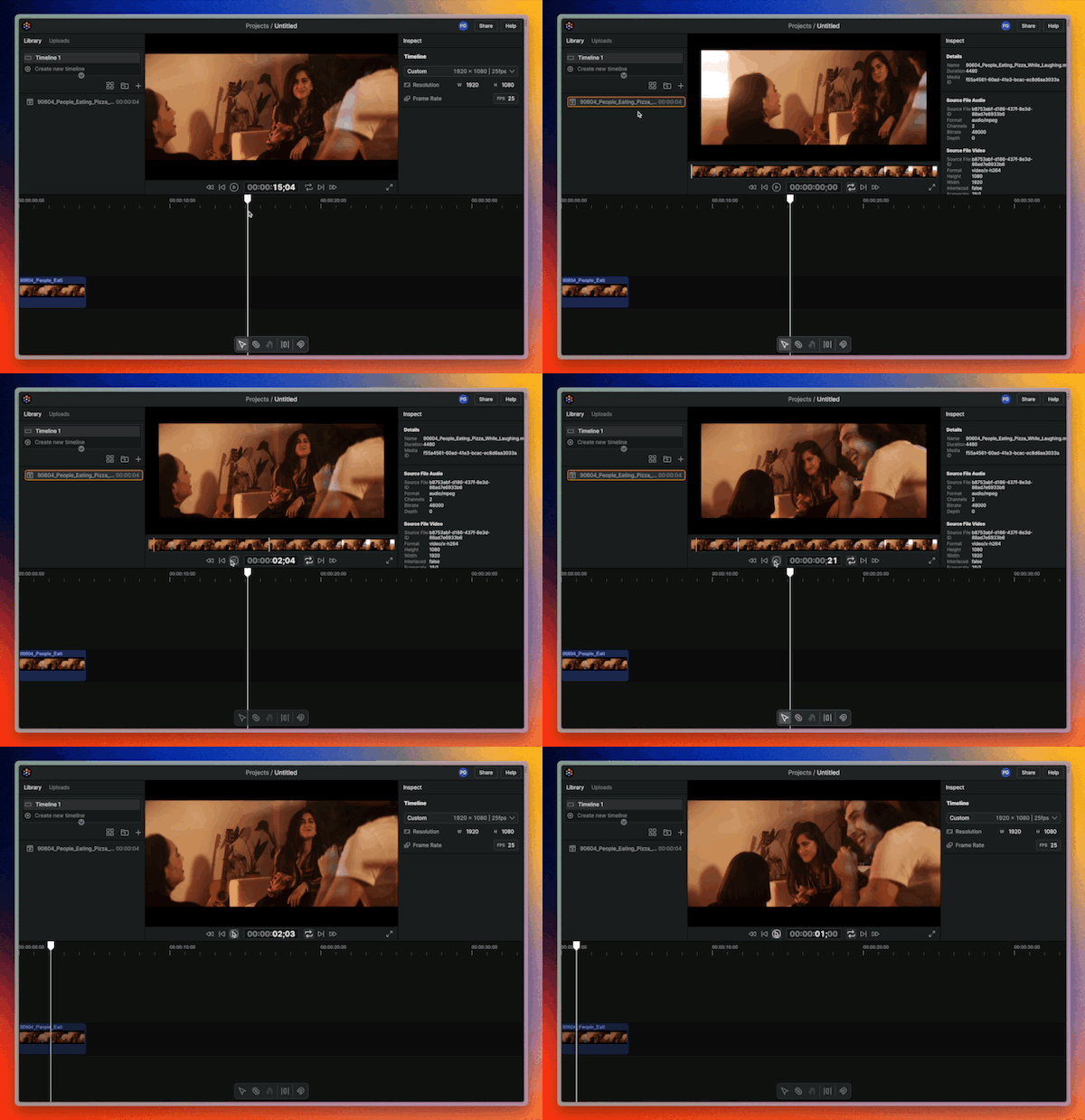
Once a file is selected in the library:
- Hover over the filmstrip preview to skim the contents of the file
- Click anywhere on the filmstrip to move the playhead position to that frame
- Press the spacebar or use the play/pause button to start and stop playback
Mini Preview
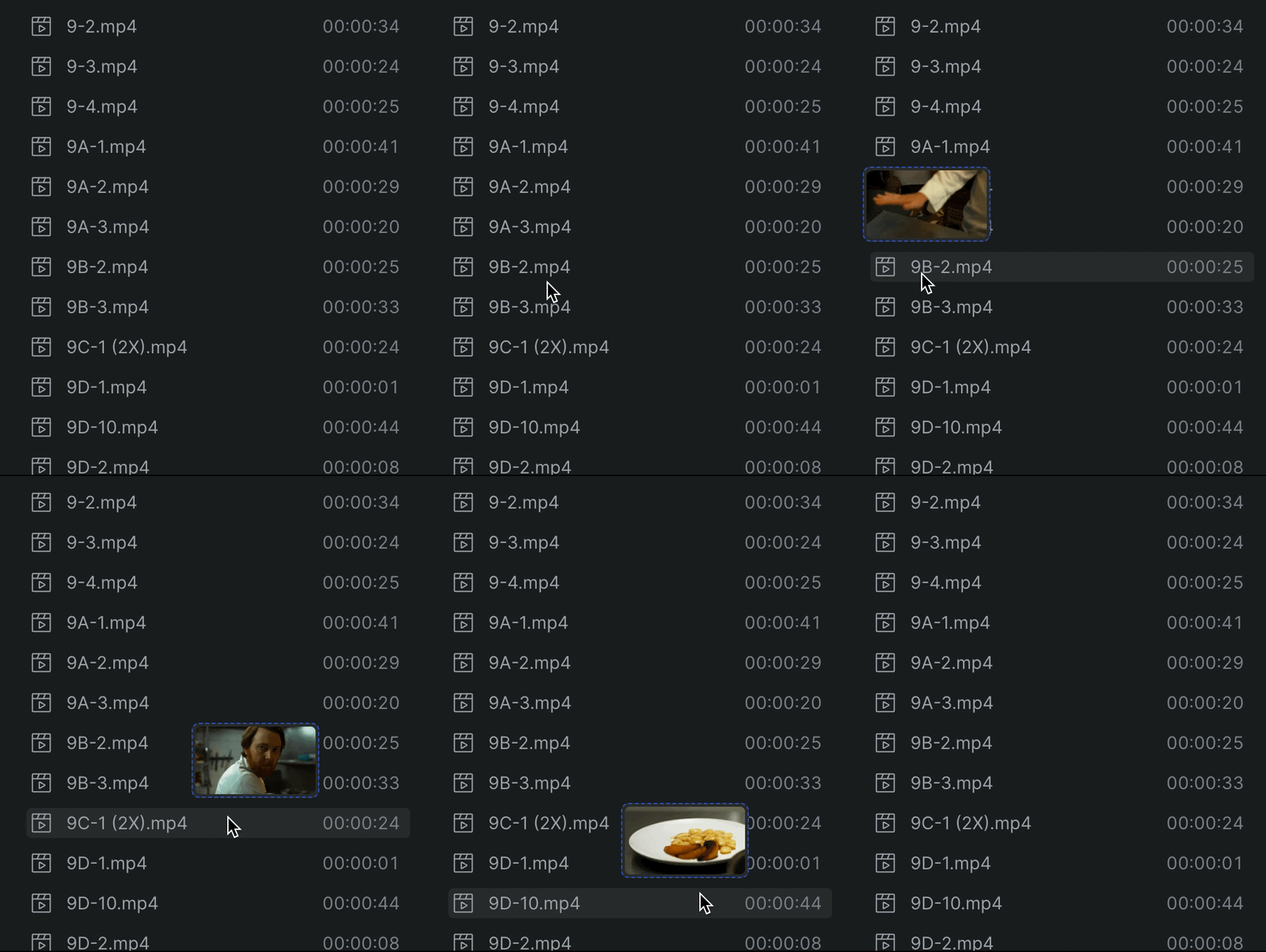
Before you select clips, you can also get a quick visual preview of them in the library panel by hovering over an asset.
Previewing Timelines
Click on any timeline from the timeline picker, or anywhere on the background of an open timeline:
- If it’s the first time accessing that timeline during the current session, the timeline clips need to be loaded into the project system. A rainbow progress bar above the timeline will display this progress.
- Once it loads, hover anywhere in the timeline to skim it
- Click anywhere on the timeline background to move the playhead position to that frame.
- Press the spacebar or use the play/pause button to start and stop playback.
- NOTE: The timeline will dim and become non-interactive during playback to prevent changes from interrupting the steam. Pause the stream to load any changes and work in the timeline again.
Timeline Playback Controls
To start and stop the timeline, use SPACEBAR or the play/pause button in the preview controls.
To move forward and backward one frame at a time, use the frame stepping buttons in the preview controls or use the right and left arrow keys.
Hold shift while doing this to move 10 frames at a time.
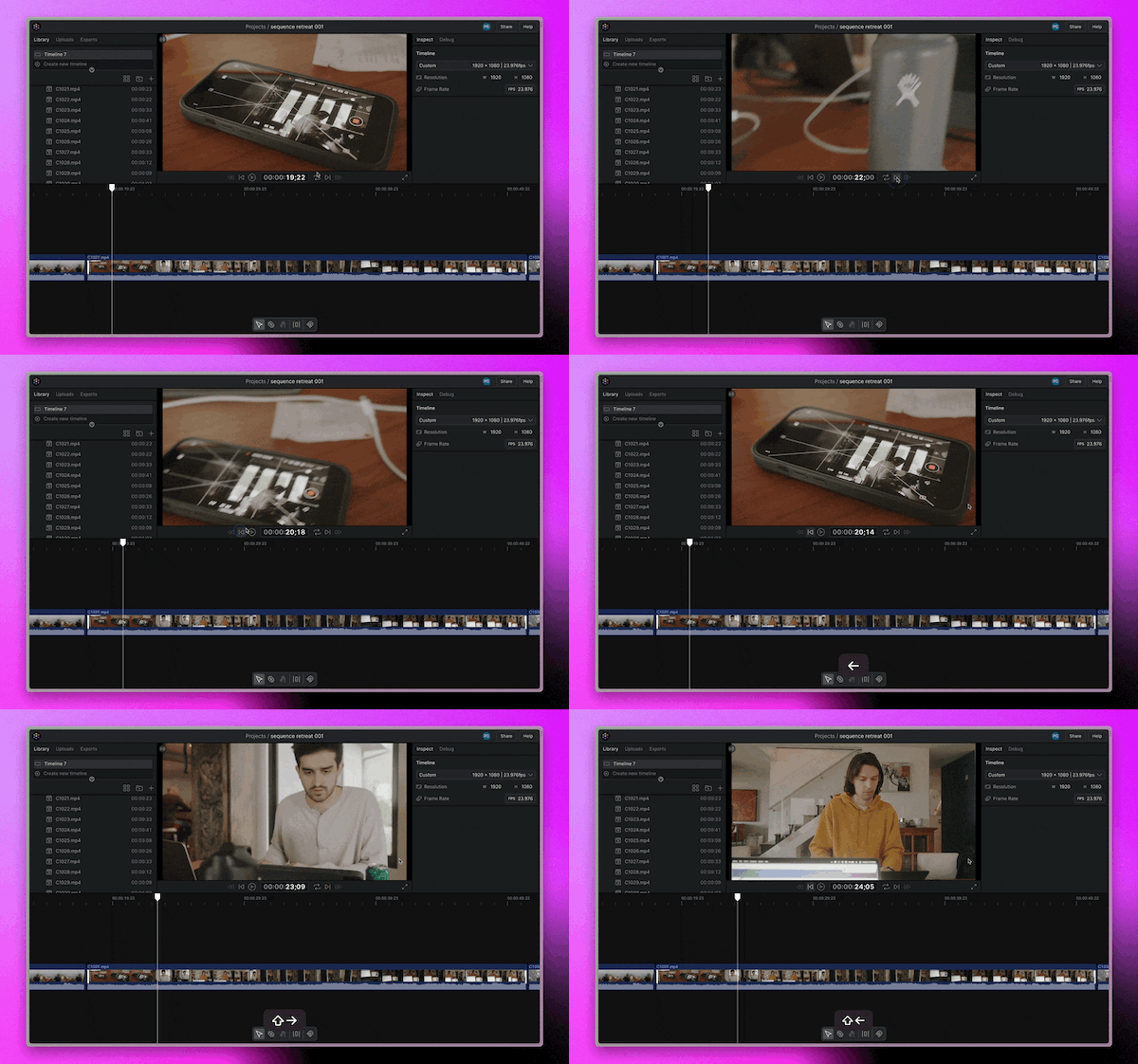
To navigate to the previous and next edit points in the timeline, use the up and down arrow keys.
Loop Playback
By default playback will end at the end of a library clip or at the end of a timeline. You can enable the loop toggle in the playback controls to make playback loop continuously until manually pausing it.
Use Ranges to Select Just What You Need from a Clip in the Preview
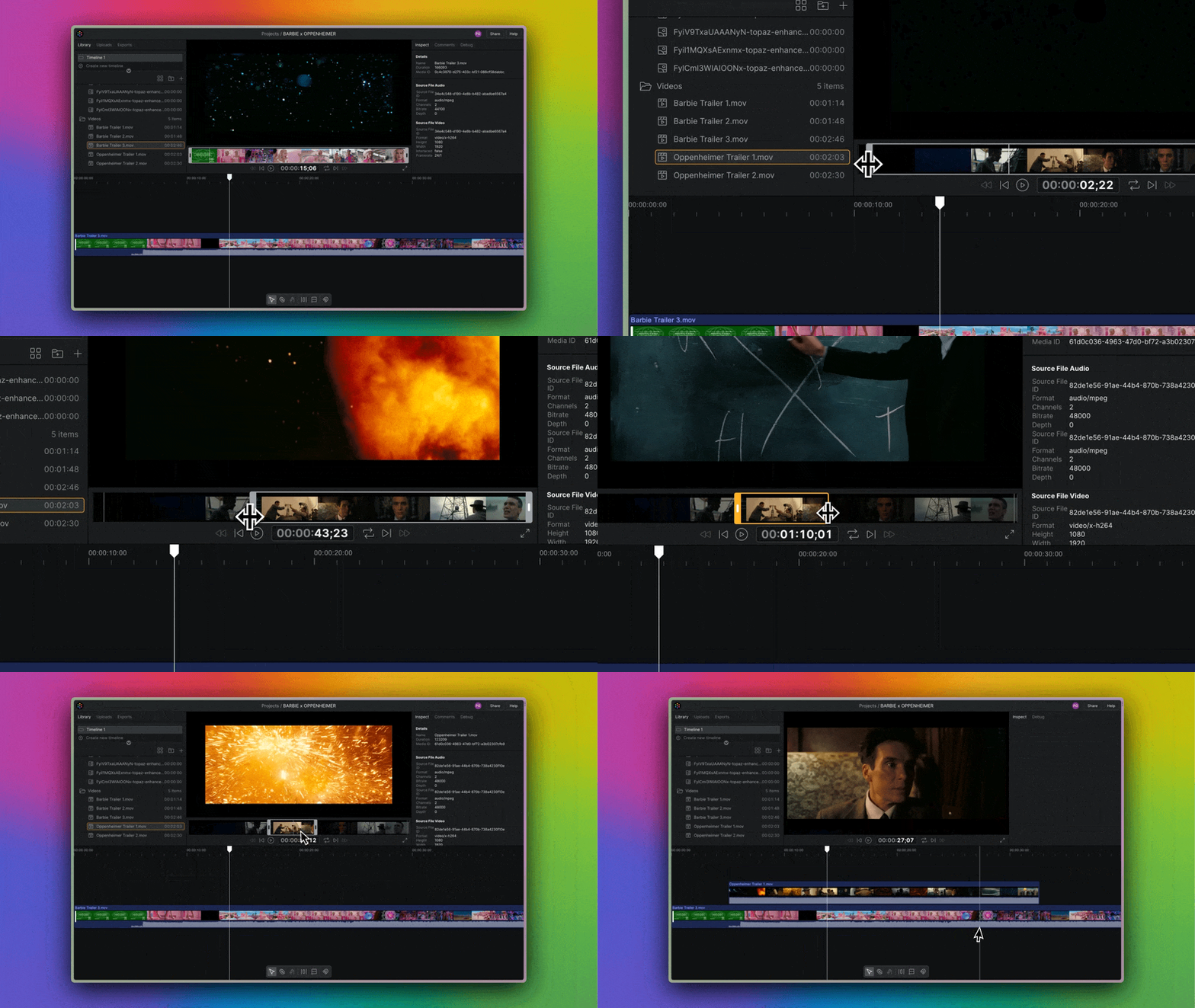
Adding entire clips to the timeline and then cutting or trimming down to what you need can be time consuming. Ranges enable a classic editing technique known as "3-point editing" that helps save you time by letting you select just the portion of a clip you need and add it to the timeline.
- When you select a library item to preview, the entire range is selected by default.
- Use the trim handles to adjust the range to the portion of the clip you want to use.
- You can also use the keyboard shortcut
[to set the beginning of the range and]to set the end of the range. - Once you have the range set, you can drag it into the timeline.
- To reset a range to the entire clip, press
Xon your keyboard.