Using the Inspector
The inspector displays the available actions you can take based on the current selection.
Timeline Settings
When a timeline is selected from the timeline picker, use the inspector panel to view and change the settings of the timeline.
Learn more: Creating & Navigating Timelines
Clip Settings
Size
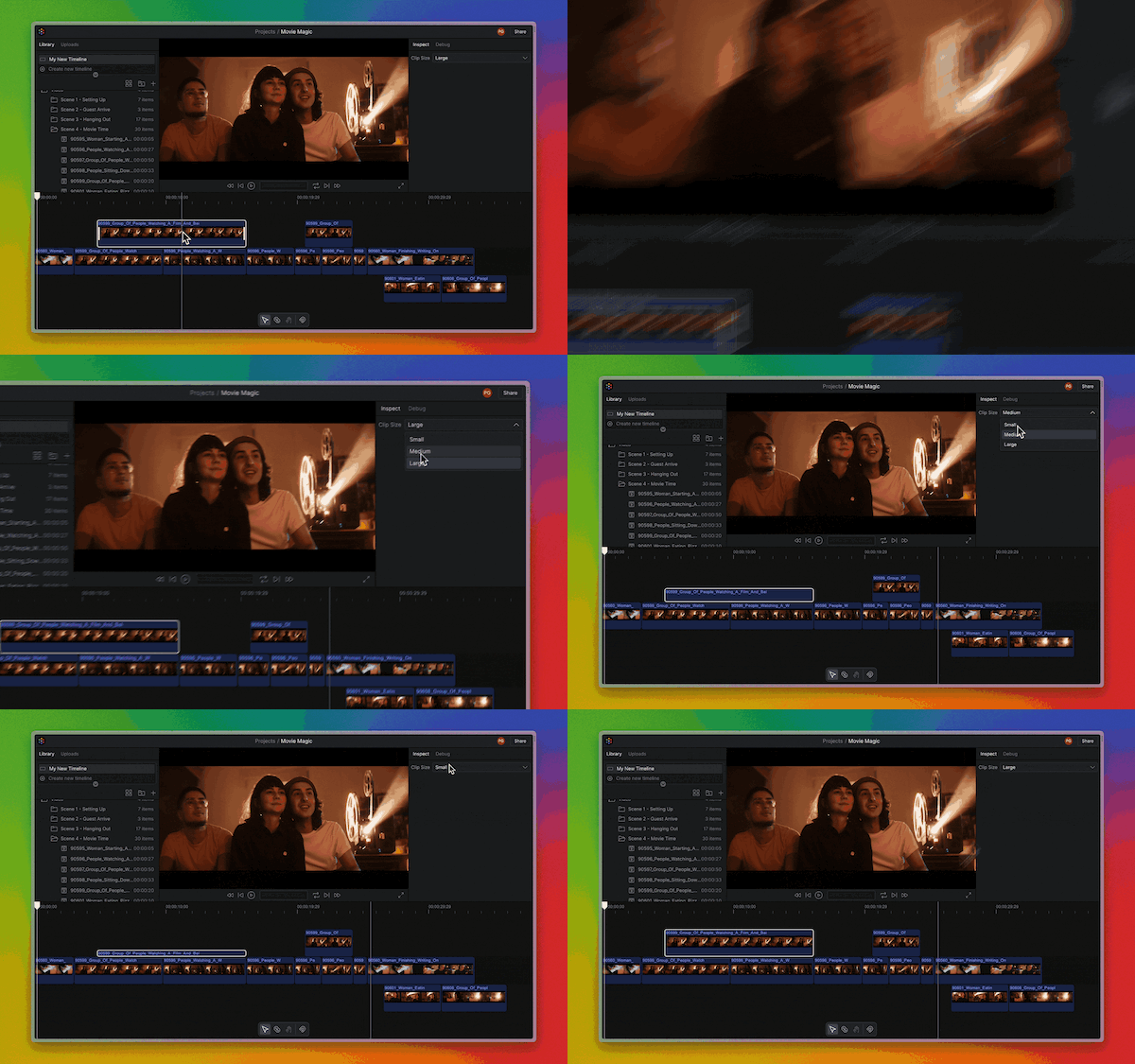
Change the size of attached clips outside of the storyline in in the inspector panel (useful for tidying up busy timelines)
You can also use the keyboard shortcut R to quickly toggle between these sizes.
Position
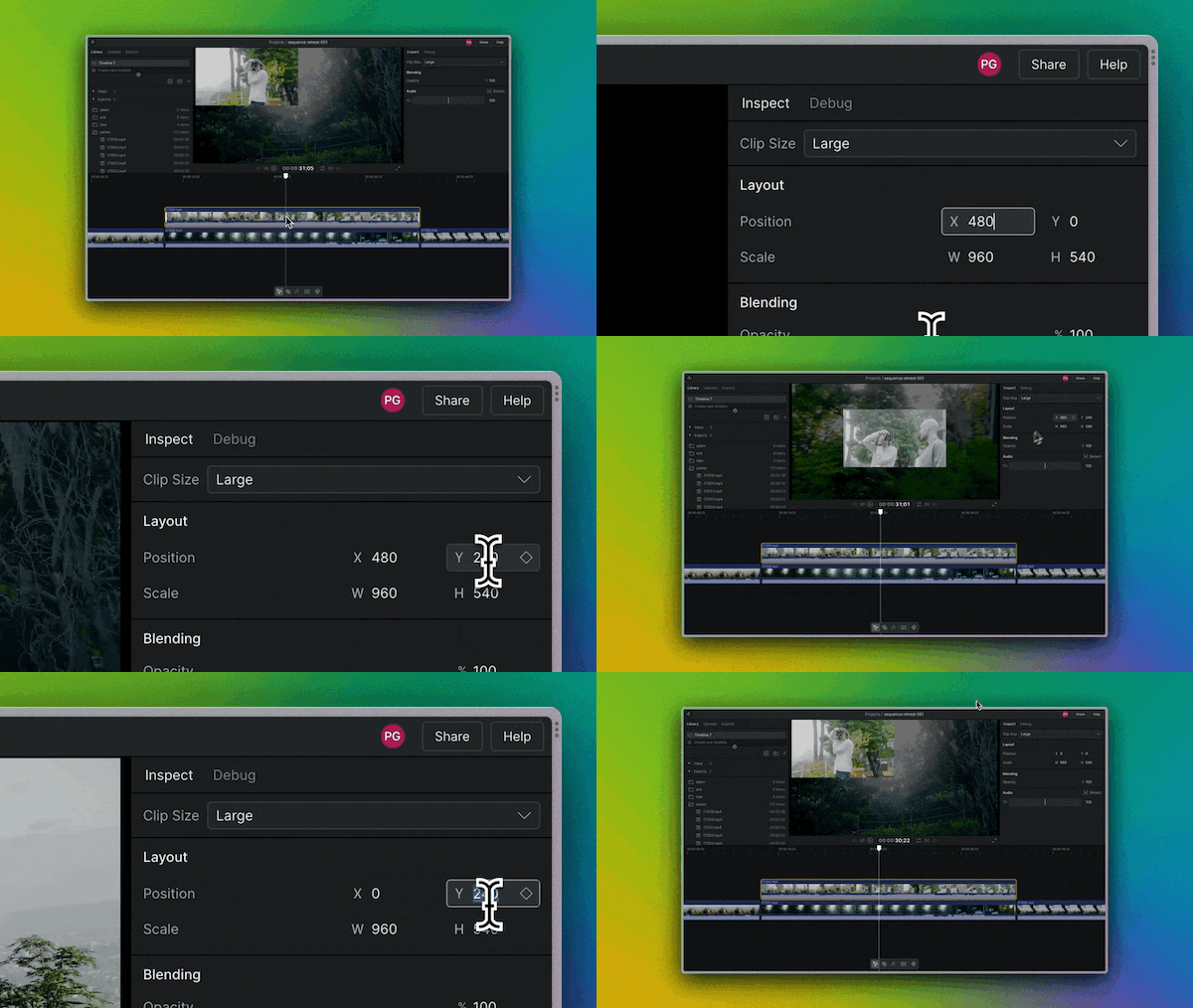
Change the position of a clip within a timeline. The position is anchored to the top left corner of the preview when X and Y are both 0. The resolution of the timeline determines the bottom and right edges.
Scale
When a clip is brought into a timeline, it will be rescaled to fit within the timeline resolution.
The width and height can also be customized using the W and H inputs.
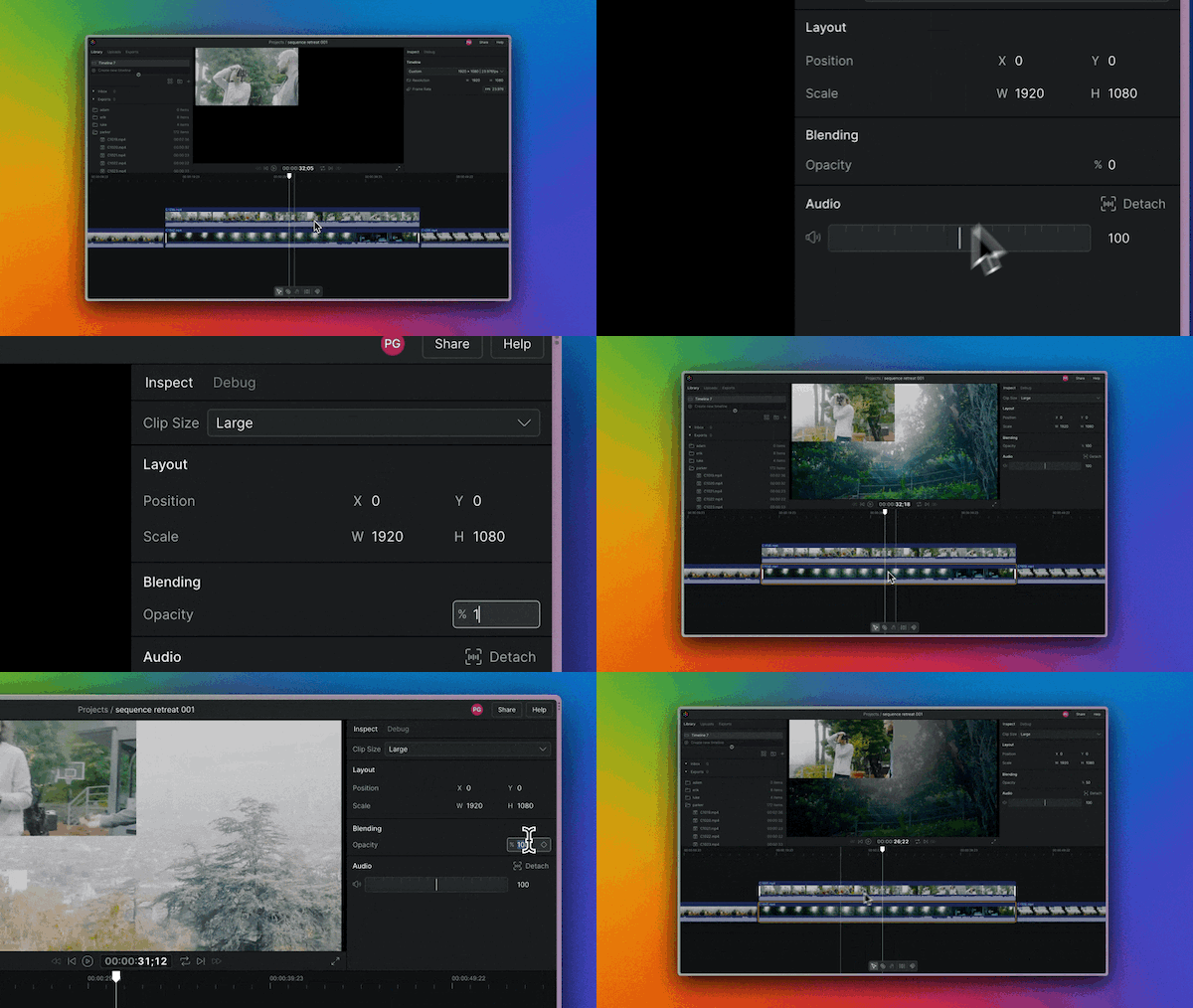
Opacity
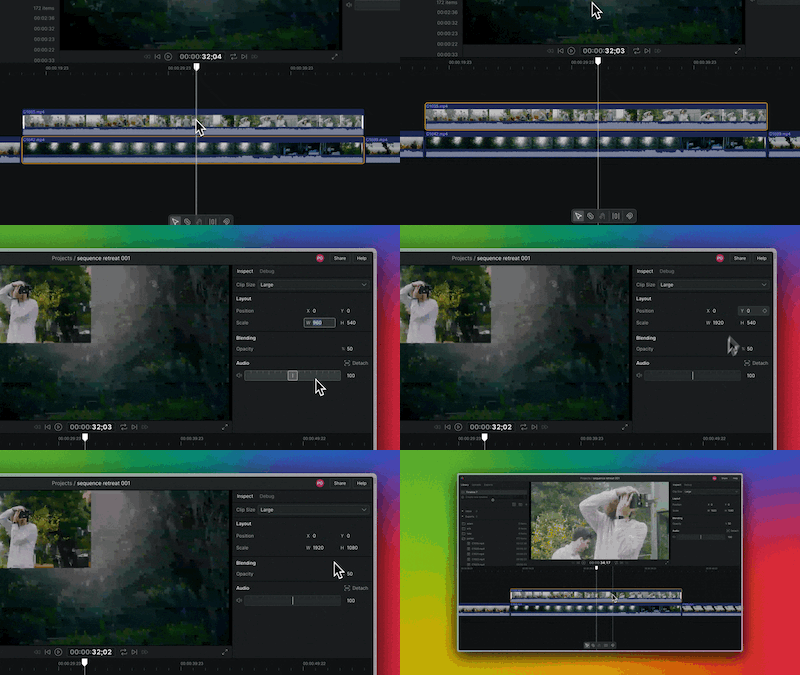
Change the opacity of a selected clip between 0 and 100%.
Volume
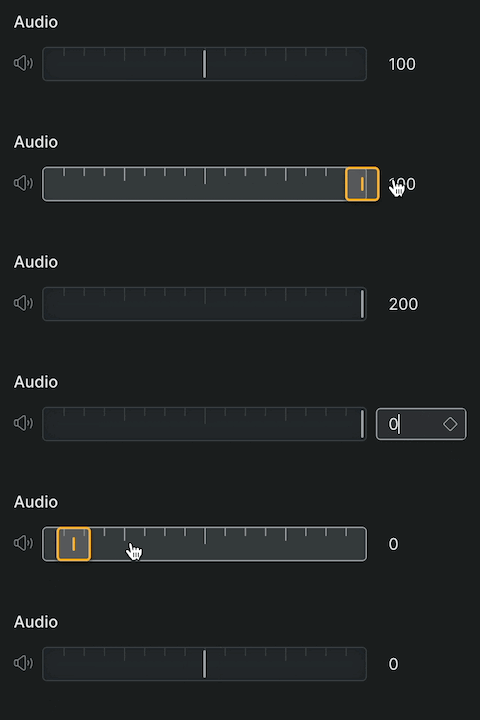
Change the volume of a clip between 0 and 200%.